Showing posts with label Delphi. Show all posts

Thursday, July 5, 2018

DivvyStats: An Excercise in Architecting and Full Stack Development

My Objectives

Let me begin by saying that this project is a non-revenue project. I haven't been paid for the work. However, I felt that the benefits would justify the effort. Here's what I wanted to accomplish.
  • Architect an entire system, taking the design from conceptualization to the specification of technologies used for implementation.
  • Develop an entire system, e.g. become a "full stack" developer able to start at the beginning and work through to the actual deployment and launch.
  • Learn and develop some proficiency in a number of technologies that were to me, mostly mysterious acronyms before I began to learn and employ them.
I leave it to the reader to decide how well I succeeded in my effort. My personal feeling is that I did rather well given my somewhat inexperienced starting point. Clearly, I have more to learn; but learning more about what you don't know is part of the benefit of the exercise. Learning about things you don't know you don't know is an even greater epiphany!

Foundation Elements

Most systems are built around some fairly known and widely used technologies. This effort was no different. Here's my foundation technology list. All other technologies complimented these:
  • Delphi and its related technologies such as FireDAC, LiveBindings and FireMonkey.
  • Interbase RDBMS along with a couple of user functions (written in Delphi) used to make things a bit easier and more maintainable.)
  • Node.js, your savior or your nemesis depending on your viewpoint.
  • HTML5, an absolute must if you're doing modern web development.
  • CSS3, another "must" for modern web development.
  • JavaScript, because if you use Node it's pretty hard to use anything else. It's ubiquitous despite all of its nay-sayers.
Of course, there were lots of ancillary technologies used to support the effort, among them uniGUI (FMSoft's web application development framework), npm (Node Package Manager), Express (a Node based framework) and Bootstrap (that helps trying to style responsive websites.) For a more complete list and discussion, see the website (link below.)

Major Topic for Development

One of the decisions to make for a project of this kind is what I call "topic." Just what do you choose for development? The choice should be:
  • Complex enough to be challenging and interesting
  • Interesting and relevant to a reasonably sized audience
  • Solvable using available technologies and skill level of the project team (in this case me)
  • Related to something already of interest.
I finally settled on DivvyBikes, Chicago's bike sharing system. Not only does it satisfy my criteria, but it also offers:
  • A large repository of data free for the taking (for any legal purpose)
  • Serious possibilities for logistic complexity
  • The possibility of having an impact on urban life and transportation
  • Personal interest since I'm a Divvy user and to say I'm enthusiastic about it would be an understatement. (I recently received an award from Divvy for being their champion senior rider.)

The Results

The result of this effort consists of two major deliverables:
  • The DivvyStats website, that you can visit here: DivvyStats. Note that the link uses a nonstandard port.
  • The DivvyStats Dashboards, that you can visit here: DivvyStats Dashboards. Note that this link also uses a nonstandard port.
The website provides a lot of detail and imagery about the system, how it is architected, what technologies are employed and screen shots of expected outputs and displays. This includes things like the system overview diagram, a list of technologies with links for more information, and an E/R Diagram for the database used by the system.

The dashboards are a uniGUI application. The various displays available are explained in greater detail by the website page "Dashboards" accessible from the System Architecture dropdown of the main menu.

Effort

The entire effort occupied about 600 hours. Unfortunately, I did not track "learning curve" separately from application of technology. In some cases, much of the time spent was actually trying to learn a new technology in order to apply it effectively. I developed a half-dozen or more separate, small projects along the way to test various ideas before actually implementing something in the final product. Here are the major time investments, from most time-intensive to least:
  • The maintenance and administrative program, written using Delphi Tokyo, FireMonkey and LiveBindings. Also included were new experiences accessing Divvy APIs, using the Zip components to unzip files and then process the .csv files that came as a part of the zipped download. Along the way I developed a crude ORM and gained some practice in using some of the more common design patterns. Data cleansing was also a bit of a time-consuming effort as the Divvy data covers several years, and the files generated by Divvy early on differ in some ways from files in later years. No external files were used. The Divvy data was downloaded into RAM, unzipped, and the .csv files converted to my mini ORM entirely without writing to external media. This enabled me to achieve about a 700 row/second insertion rate on the Interbase database installed on another server locally, accessed via a gigabit LAN connection. Overall, lots of details occupied time with this program.
  • Next most time consuming was the uniGUI application, a totally new technology for me. While there is some documentation for uniGUI that is helpful, it still could use greater detail and more comprehensive content. Much of what there is to learn must be learned by reading the code and samples, and by reading and learning about the Sencha components that uniGUI deploys.
  • The actual website was next, but since the website is basically a static site, not much effort was required beyond what I had already acquired from other efforts. One of the more interesting pieces of the website was the sending of email used by the "Contact Me" page.
  • Data analysis and research followed website development time-wise. This involved determining data content, examining relationships and generally trying to clean up a few things that were ambiguous.
  • The monitor service (a Windows service program that periodically takes a snapshot of the entire Divvy system) was next. Mostly this was simply learning the most efficient way to update the database. You download 574 records and pop them into the database every X number of minutes. Some editing is required along with data conversion. (I store everything UTC, the only reliable way to store timestamps, but Divvy provides data in local format that of course suffers from all the deficiencies of daylight savings.)
  • A few other minor time chunks were taken up by architecting, database design and administration, deployment, graphics (using Adobe Illustrator) and version control (Atlassian and GitHub.)

Conclusion

Building a complete "system" is amazingly time-consuming and requires a broad base of technology familiarity. It has given me a much greater understanding of just what it takes to bring an idea from concept to Minimum Viable Product.

My suggestion is to go through the website and try the uniGUI application. I hope it provides you with a greater appreciation for the depth and variety of tasks it takes to realize a vision using IT resources.

Good luck with your own efforts!

Thursday, August 18, 2016

VKScrollDemo: A Working Example of Vertical Scroll Box Management


This is the forth post of a four-post series on Delphi's FireMonkey support for mobile device virtual keyboards. For the first in the series, see Using Delphi's FireMonkey Vertical Scroll Box With a Virtual Keyboard.

There is source code that accompanies these blogs. The project group FMXVertScrollBoxEtude can be downloaded from GitHub:

https://github.com/Pasquina/FMXVertScrollBoxEtude/releases

Source code was developed using RAD Studio 10.1 Berlin (No updates.)

The GUI


Execute the VKScrollDemo project with an Android device as target. The screen is identical to previously presented screens.

VKScrollDemo Initial Screen

Although the screen appears identical to previously presented screens there is a significant difference in the program source. Refer to the Structure window in the IDE to see how components are arranged.
  • A vertical scroll box has been added with an alignment of client so that it takes up nearly all of the form's area.
  • The GridPanelLayout, Memo and Button are all children of the Vertical Scroll Box. Thus, when the viewport on the scroll box is changed, all children are repositioned in accordance with the new position of the scroll box.
  • The labels at the top of the form are not children of the Vertical Scroll Box, and thus will not participate in the repositioning of the viewport.
  • The VyDVSBFMXScroll component has been dropped onto the form. The VScrollBox property has been set to the form's only vertical scroll box. This is the scroll box that the component will manage. The optional MemoBox property has been set to point to the Memo on the form as this is a demonstration program and seeing the event handler properties may be useful. 

Program Behavior


Select the input field component with a text hint of "Default." This will cause the virtual keyboard to appear and the scroll box viewport to be adjusted so that the input field is just above the virtual keyboard. Choose the Next key twice on the virtual keyboard and move the focus to the input field with a text hint of Email Addr. The viewport will adjust appropriately and the display should be as follows:

VKScrollDemo Advancing Through Input Components

Chose Next two more times and the screen should appear as follows:

VKScrollDemo With Troublesome Number Pad Virtual Keyboard


Ideally, the device display should appear as shown. As we have noted earlier, the height of the virtual keyboard is not always reliably reported, and on occasion the vertical scroll box and its contents will not be positioned correctly.

Viewport Misposition Workaround


If the viewport is not positioned correctly, this is probably because of an erroneous reporting of virtual keyboard parameters in the VirtualKeyboardShown event. It is easy to recover from this by the following method:
  • With the virtual keyboard showing, select the hardware back key on the device. This will cause the virtual keyboard to be hidden and the viewport will be returned to its default position.
  • Reselect the input field that was originally desired. You can select any input field at any time; you don't have to start with the first field in the tab list. This will probably correctly position the vertical scroll box and input may proceed normally.
  • If this recovery procedure does not correct the display, select a field prior to the field desired and use the Return key (that may be displaying Next or some other value if selected in the field properties) to Tab through the fields until you reach the desired field.

Conclusion


If you have worked with the prior demonstration programs to gain an understanding of scroll boxes, field navigation and some of the quirks involved with FireMonkey and Android, you should be able to track down most ordinary bugs you may encounter. The demonstration programs also display the parameter values of the event handlers that will assist in problem determination.

This is the last post in the four-post series about FireMonkey scroll boxes. 

Happy scrolling and thanks for reading this.

Comments are welcome.


FireMonkey VyDVSBHelper: A Component to Manage a Vertical Scroll Box to Reveal Input Fields Obscured by a Virtual Keyboard


This is the third post of a four-post series on Delphi's FireMonkey support for mobile device virtual keyboards. For the first in the series, see Using Delphi's FireMonkey Vertical Scroll Box With a Virtual Keyboard.

There is source code that accompanies these blogs. The project group FMXVertScrollBoxEtude can be downloaded from GitHub:

https://github.com/Pasquina/FMXVertScrollBoxEtude/releases

Source code was developed using RAD Studio 10.1 Berlin (No updates.)

Overview


VyDVSBHelper is designed to manage a Vertical Scroll Box in response to change in the presence or absence of a virtual keyboard and the current input field focus. The concept is straightforward:
  • For each change in either input field focus or virtual keyboard show or hide, calculate the screen difference between the bottom of the focused field and the top of the virtual keyboard.
  • If the difference is positive (the top of the virtual keyboard is above the bottom of the focused field and therefore is obscuring the field) then reposition the vertical scroll box viewport so that the focused field is just above the virtual field and no longer obscured.

There are three major event handlers required to achieve this functionality, all events of TForm:
  • FormFocusChanged—fired when the focus changes to a different child on the form.
  • VirtualKeyboardShown—fired when the virtual keyboard is shown in response an input field receiving the focus.
  • virtualKeyboardHidden—fired when no control requiring input has the focus.

In addition, there is one event handler that is used to effect viewport repositioning:
  • CalcContentBounds—fired when the RealignContents method is invoked. Here is is used to ensure sufficient vertical content to allow the viewport to be shifted the required amount.

Internally used routines are:
  • Create—performs initialization including setting the TForm event handlers needed by the component.
  • LogFocused—Optionally logs the FormFocusChanged event. (Debugging tool.)
  • LogVK—Optionally logs the VirtualKeyboardHidden and VirtualKeyboardShown events. (Debugging tool.)
  • ResetViewport—resets the scroll box viewport if needed to reveal obscured input objects.
  • SetFocusedABSY—besides being a property setter determines if a viewport shift is required.
  • SetVKAbsY—besides being a property setter determines if a viewport shift is required.
  • SetupContentBounds—ensures that the vertical bounds of the scroll box are sufficient to effect the viewport shift.
  • ShiftViewport—Determines the shift amount required and either resets the viewport to the default position or invokes SetupContentBounds and then repositions the viewport to reveal the obscured object.

Using the VyDVSBFMXScroll Component


Component Installation


Install the 32-bit version of the component. This will cause it to appear in the Tool Pallet in the VSB Helper category. Note that this will only appear if the project framework is FireMonkey. The component is intended to work for mobile devices that can only be developed using FireMonkey. See the Register procedure for details on how this is accomplished.

The component code must be available for use in your Android deployments. One way to do this is to build the Android version of the component.

It is assumed that the user is familiar with how components are installed and used in projects. You may have to make changes to the component project to ensure that the proper libraries contain the necessary files.

Application Project 


The application project must contain a vertical scroll box. This is the layout that will be repositioned to reveal obscured input objects. All objects requiring repositioning must be children of the vertical scroll box, so that they are repositioned along with the scroll box when needed. (This can be seen in the VKScrollDemo project.)

Drop the VyDVSBHelper onto the project. There is one property to set: VScrollBox should be set to the vertical scroll box it is desired to manage. Normally, there will be only one. Optionally, you can specify a value for the MemoBox property if it is desired to log the event handler traces. This property is optional and if omitted, no logging will take place.

Be sure that the tab order is set as you intend navigation to take place. Also, you must include the following event handler (OnFormKeyDown) in your own code:


Besides any application code you require, no other programming should be necessary to manage the vertical scroll box.

Some Caveats


The create procedure of the VKScrollDemo component modifies the TForm component that calls it. Specifically, it puts its own event handler addresses in the OnVirtualKeyboardShown, OnVirtualKeyboardHidden and OnFocusChanged events. It will overlay any specification you may have made at design time. Do not modify these values as proper functioning of the component depends on the required event handlers.

Similar remarks apply to the OnCalcContentBounds event handler of the Vertical Scroll Box. It is not done in the Create procedure because the address of the Vertical Scroll Box is not yet available to make the modification. See the SetupContentBounds procedure in the source code for more information.

It is important that the two setters, SetVKAbsY and SetFocusedAbsY be used rather than referencing the base fields, FVKAbsY and FFocusedAbsY. This is because the setters make a logical decision and invoke the ShiftViewportRoutine when required. Setting the field values directly would bypass this small but important piece of logic.

It is not always possible to determine the height of a virtual keyboard accurately. When the reported height is 25, you can be certain this is erroneous. See the event handler VirtualKeyboardShown to see the simple hack used to try to guess an appropriate value.

Conclusion


I have attempted to make VyDVSBHelper a simple and straightforward component to use. Certain anomalies in either FireMonkey or Android conspire to make this a bit dodgy, especially when parameters from events are not reported accurately and consistently.

In the fourth and final posting in this series, we examine a working example of an application that uses the VyDVSBHelper component. Since there are occasional random failings when virtual keyboard heights are misreported, we examine circumventions that the user may employ to recover.


Comments are welcomed. Thanks for reading this far.

FireMonkey TForms: Events for Virtual Keyboard  Navigation and Scroll Box Control


This is the second post of a four-post series on Delphi's FireMonkey support for mobile device virtual keyboards. For the first in the series, see Using Delphi's FireMonkey Vertical Scroll Box With a Virtual Keyboard.

There is source code that accompanies these blogs. The project group FMXVertScrollBoxEtude can be downloaded from GitHub:

https://github.com/Pasquina/FMXVertScrollBoxEtude/releases

Source code was developed using RAD Studio 10.1 Berlin (No updates.)


Objectives


  • Understand the FireMonkey TForm events that are useful for virtual keyboard support, the order that they are fired, and the values of the parameters that are passed to the event handlers. Addtionally, some anomalies will be discussed that will become apparent when the handler log is examined.
  • Develop a simple technique to permit input field navigation by using the Return key on the virtual keyboard. Additonally, an anomaly in the implementation of this feature will be discussed.

Note that the objective of implementing a Vertical Scroll Box to reveal otherwise hidden input fields is not implemented by this program. When you run the program on a mobile device, the input fields will be hidden by the virtual keyboard. Implementing the Vertical Scroll Box is deferred to the next blog post.

The VKLogger.exe Program


While the program will run as a Windows application, it is most effective when run on a mobile device. The illustrations that follow are from a Samsung Galaxy Tab 3 running Android 4.4.2. 

The GUI

VKLogger.exe GUI

Always Show Checkbox: This is useful when running the program on a windows PC or any device that has a hardware keyboard. Devices with hardware keyboards do not normally show the virtual keyboard. Checking this box modifies that behavior so that the virtual keyboard is shown even in cases where a hardware keyboard is present.

Input Field Array: The eight input fields are arranged in two columns using a TGridPanelLayout. Each of the input fields specifies a different type of virtual keyboard required for input. The TextPrompt property is used to indicate the type of keyboard specified for the field. Additionally, each input field specifies a ReturnKeyType of Next with the exception of the last field (URL) that specifies a ReturnKeyType of Done.

Some Button: is an arbitrary control that is outside of the TGridPanelLayout that contains the input fields. It does nothing.

Navigation


The desired behavior is as follows: The user selects the first input field (Default) and complete data entry. The Next key on the virtual keyboard causes the cursor to navigate to the next input field, which selects the desired virtual keyboard type. The process is repeated for all input fields except the last, that displays Done rather than Next. Selecting Done results in navigation to the Some Button button.

Within the TGridPanelLayout this is accomplished by setting an appropriate tab order. In the IDE, right click on the TGridPanelLayout and choose Tab Order... This displays the Tab Order editor.


Tab Order Editor for TGridPanelLayout

The individual controls within the TGridPanelLayout will be navigated in the order specified from top to bottom. You can make any changes you deem necessary by moving controls up and down in the list.

Similarly, right click on the TForm component and choose Tab Order... The tab order editor will present a similar screen but this time itemizing the controls that are children of the TForm component.

Tab Order Editor for TForm

Note that the TButton control follows the TGridPanelLayout control. Navigation from the last control in the TGridPanelLayout will be to the TButton control, the next control after the TGridPanelLayout.


Navigation using Tab Order is accomplished by the keyboard tab key. However, the virtual keyboard does not have a tab key. Instead, the Return Key is employed by intercepting the Return and changing it to a Tab. This is accomplished in the Form Key Down event handler using the following code:


Statement 10 is required to cause the modified key code to be reprocessed by the TForm to effect navigation.

Setting the tab order and implementing the FormKeyDown event handler as illustrated is all that is needed to effect a simple and straightforward navigation scheme.

It should be noted that despite indicating the ReturnKeyType on each input field, this value is not reliably observed by FireMonkey. Frequently, Done is not displayed at all and sometimes the ordinary return key symbol is displayed rather than the designated type. This is a cosmetic failing, however. The key is always a return key as you can see by the FormKeyDown processing; the only difference is the label on the return key.

Event Tracing


VKLogger traces three events:
  • FormFocusChanged
  • FormVirtualKeyboardHidden
  • FormVirtualKeyboardShown

Each time one of these event handlers is entered, a line is added to the memo box at the top of the form. Parameters passed to the handler are displayed on the same line. The following is a typical display after all eight input fields have been navigated by using the Next key (Return.) The display is from  a Samsung Tab Galaxy Tab 3) (Model SM-T310) running Android 4.4.2.

VKLogger Trace Sample 1

Notice several things:
  • The first Focused event (FormFocusChanged) is followed by two identical Shown (FormVirtualKeyboardShown) events. This is not unusual and is not reliably reproduced. All that can be said is that it sometimes happens. Further, the duplication is not always precisely the same; occasionally the second or subsequent occurrence has one or more parameters that differ from its predecessor. Usually, the difference is in the height parameter (H). 
  • The Shown event following the Focused event for Edit five is simply wrong. No virtual keyboard has a height of 5; it's much to small. This anomaly is not reliably reproduced but seems to occur when the KeyboardType is specified as NumberPad. The NumberPad virtual keyboard is different (on this device and Android version) in that it has a grab handle enabling the user to move it about the form. Other virtual keyboards remain fixed at the bottom of the screen.
  • The final Focused moves from the last input field to the Some Button. Some Button does not require a virtual keyboad and so the FormVirtualKeyboardHidden event is fired resulting in the last entry in the memo box. However, aside from the Visible parameter (V) correctly having a value of False, the rest of the parameters are incorrect. A hidden virtual keyboard has no height or width nor does it have a meaningful position.
  • When switching virtual keyboards, the Hidden event does not fire. In other words, the old virtual keyboard is not hidden followed by showing the new virtual keyboard. The switch is indicated by a single Shown event that implies that a prior virtual keyboard has been dismissed.

Here is a similar execution of VKLogger on a different Samsung Galaxy Tab 3 Model SM-T217S) also running Android 4.4.2.

VKLogger Trace Sample 2

Despite being the same environment (so far as I can tell) there are some differences between this and the first sample:
  • The Shown event following TEdit1 is not repeated.
  • The Shown height following TEdit5 is not incorrectly reported as 25. Instead, the more reasonable 327 is reported.
  • However, the Shown height following TEdit6 is now an very unreasonable 489.

I can't explain these differences. I can only observe that they exist.

Conclusion


Navigation and event tracing of significant TForm events is fairly straightforward and largely predictable. Problem areas include the misreported parameters for some virtual keyboards, the occasional and unpredictable duplication of Shown events (that sometimes do not have identical parameters) and the cosmetic irritation of the virtual keyboard return key not displaying the specified value.

Armed with this knowledge and the knowledge gained from ScrollDemo about scroll boxes, we are now ready to build a component that will handle repositioning a viewport to reveal input fields when a virtual keyboard is shown. That is the subject of the next blog post:

See the next post in this series at FireMonkey VyDVSBHelper: A Component to Manage a Vertical Scroll Box to Reveal Input Fields Obscured by a Virtual Keyboard

Comments are welcomed. Thanks for reading this far.

Tuesday, August 16, 2016

Using Delphi's FireMonkey Vertical Scroll Box With a Virtual Keyboard


Background


Input fields on a FireMonkey form become problematic when the application is ported to a mobile device. Mobile devices frequently do not have hardware keyboards; in place of the hardware keyboard Android provides a virtual keyboard, e.g. a visual keyboard on-screen with a layout similar to a hardware keyboard that can be used for input. The problem arises when the virtual keyboard covers a part of the original form, often obscuring the input field and depriving the user of the visual cues used to verify input.

The solution to this is to use a vertical scroll box component for the input fields so that they may be positioned above the virtual keyboard thus allowing the user to visually observe the input process. In vernacular terms, everything "slides up" to reveal the current input field.

It turns out that this involves programming a number of events that respond to changes in the field focus, the appearance and disappearance of the virtual keyboard and the positioning of the vertical scroll box viewport. Embarcadero provides a sample project to demonstrate this that frankly is typically deficient in that it doesn't work correctly much of the time, has code that is completely uncommented and undocumented and that assumes some pretty extensive knowledge of FireMonkey internals. In short, the sample is of little value as a learning or teaching tool.

My purpose here is to try to provide some needed information about FireMonkey components and how they may be used to solve this problem; to provide running applications that illustrate some of the FireMonkey behaviors that I encountered; to provide a simple Delphi component that encapsulates the techniques I developed to solve this problem; and to provide a working example of my solution that may be used as a model for further development. I have attempted to do this with heavily documented code and meaningful naming conventions that will assist the reader in understanding what I have discovered. Additionally, this posting and three subsequent postings offer more detailed discussion of the applications.

There is source code that accompanies these blogs. The project group FMXVertScrollBoxEtude can be downloaded from GitHub:

https://github.com/Pasquina/FMXVertScrollBoxEtude/releases

Source code was developed using RAD Studio 10.1 Berlin (No updates.)

Approach


ScrollBoxEtude Project Group (ScrollBoxEtude)


The ScrollBoxEtude project group was established to aggregate the four projects used to explore this problem. Each of the four projects within the ScrollBoxEtude project group has a specific objective. The code is written to illustrate that objective. All projects can be compiled for Windows 32 and 64 bit or Android executables.

Understanding Scroll Boxes (ScrollDemo.exe)


Understanding Scroll Boxes (ScrollDemo.exe) is provided to allow the manipulation of a scroll box interactively and to display the various parametric results of the user-entered manipulations. Examining the source code comments will add further insights into the way Scroll Boxes work.

Understanding Events and Event Parameters (VKLogger.exe)


There are a number of events that must be handled to implement a scroll box solution to the virtual keyboard obfuscation of input fields. VKLogger.exe interactively logs the firing of a number of important events along with the values of their parameters. 

Building a Scrolling Component (VyDVSBFMXScroll.bpl)


The TVyDVSBHelper component combines all of the necessary code and event handling needed to implement a vertical scroll box solution to the virtual keyboard input field obfuscation problem. After installing the component, it is dropped on a form containing a vertical scroll box that contains the input fields. A single property connects TVyDVSBHelper to the scroll box. This is the only code needed to implement the solution.

Scrolling Demo Program (VKScrollDemo.exe)


VKScrollDemo.exe illustrates the use of the TVyDVSBHelper with a vertical scroll box populated with input fields. Additionally, it illustrates a suggested approach to field navigation (not handled by the component) and summarizes a couple of minor anomalies in the way FireMonkey or Android handles events and displays the various virtual keyboards.

Understanding Scroll Boxes


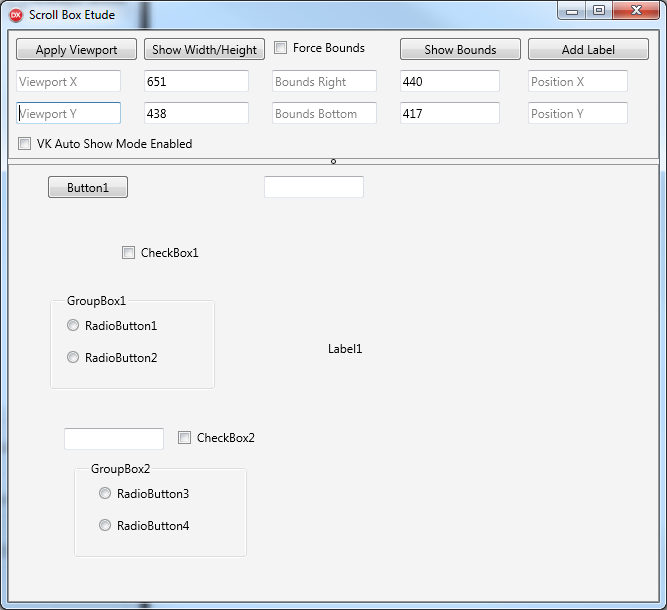
Run ScrollDemo.exe. The following screen is displayed. The bottom portion of the window consists of a scroll box populated with a number of random controls. The top band consists of a number of controls that enable the manipulation and display of scroll box contents and properties.


Scroll Box Etude: Scroll Demo

Show Width/Height Button: Pressing this button will show the width and height properties of the scroll box. These values don't change unless the size of the scroll box on the form changes. Since the scroll box is aligned to client you can resize the form and that will cause the scroll box to resize. Pressing the button again will show the new height and width.

Beep: If you resized the form and pressed the Show Width/Height button, you probably noticed a beep. This is an audible signal programmed in the CalcContentBounds event handler. It's to let you know that the Content Bounds have been recalculated by the scroll box. This beep also sounds when the application starts, since the scroll box calculates the Content Bounds on startup as well.

Show Bounds: Pressing this button displays the Content Bounds of the scroll box. Content Bounds is the rectangle that exactly includes all child controls. The content bounds extend from 0, 0 to the farthest point horizontally and vertically used by child controls. Note that this does not have anything to do with the Width and Height of the scroll box. Initially, the demo program Content Bounds is smaller in both directions than the width and height. This is because the child controls do not extend to the edges of the scroll box. In fact, if a control extends beyond the the width or height of the scroll box, the bounds will be adjusted by the scroll box to include the control. This adjustment sometimes occurs automatically, as when the height and width of the scroll box itself are changed (try resizing the window to see this) or it can be caused programmatically by invoking the RealignContent method of the scroll box.

Add Label: A label can be added at any arbitrary position by first specifying the X and Y coordinates of the upper left hand corner of the label rectangle and then clicking the Add Label button. For example, enter 200, 200 for the X and Y coordinates and click the Add Label button. (Beep as bounds are recalculated. The bounds are recalculated by the routine that adds the label. This is not automatic. The label add routine invokes the RealignContent method after the label has been added.) The label appears at the specified location. Click Show Bounds and notice that the content bounds values have not changed. this is because the label added lies completely within the existing content bounds. Now try adding a label at 1000, 1000. (Beep!) Now click Show Bounds and discover that the bounds are now much larger than previously. They are even larger than the 1000, 1000 specified for the label's position. This is because the label position is the top left of the label, and the bounds have been expanded to include the length and height of the label that extend to the right and down from the position. But there's more: scroll bars have appeared on the scroll box. You can now scroll down and to the right to view the newly added label. (You must have the ShowScrollBars property of the scroll box set to True for the scroll bars to appear.)

Apply Viewport: You can position the contents of a scroll box to a specified position in the visible control window by changing the viewport position. For example, you can specify a viewport of 100, 100, and point 100, 100 within the content bounds will be placed at point 0, 0 in the visible control window. This is analogous to moving the window contents by using the scroll bars. It is not always possible to position the viewport to something other than 0, 0. If the content bounds of the control do not extend beyond the width and height of the control window, then no repositioning is possible. Another way of thinking of this is by observing the scroll bars on the window. If no scroll bars are visible, then no repositioning is possible, either programmatically or by using the scroll bars. The maximum amount of the repositioning is determined by the content bounds. You cannot reposition the viewport if it would result in moving the right or bottom content bound to a value less than the width or height respectively of the scroll box window.

Force Bounds: Without any special handling, when the scroll box bounds are recalculated, they include everything from 0, 0 to the right and down sufficient to exactly include all child controls but no more. It is possible to override this calculation by using the CalcContentBounds event. This event is fired when the RealignContent method is invoked. It is the only way the content bounds can be set programmatically without changing the child content of the scroll box. The ContentBounds property of the scroll box is read-only. This property can only be changed by the CalcContentBounds event handler. This is an important technique to master. To change the content bounds to arbitrary values, the CalcContentBounds event handler must return the new content bounds values to the invoker. If the content bounds are not changed by the event handler, then the default calculated values will be retained. The Force Bounds check box exploits this behavior. First, click Show Bounds to display the current values. Then enter new bounds values in the entry fields beneath the Force Bounds checkbox. Finally, check the Force Bounds checkbox and click Show Bounds again to display the new values. Notice that the content bounds have changed to the specified values but no new controls have been added to or removed from the scroll box. Only the bounds have been changed. Uncheck the Force Bounds checkbox to cause the default content bounds values to be restored. The CalcContentBounds event handler examines the state of the checkbox to determine whether or not to override the default bounds calculation. Remember, to change the content bounds programmatically, you must write a CalContentBounds event handler and then invoke RealignContent to cause the event to fire. This behavior is an important part of repositioning the viewport to avoid hiding input controls when the virtual keyboard is displayed. This is discussed further in a later blog.

VK Auto Show Mode Enabled: This is a minor feature of this demo that forces the display of the virtual keyboard even when it is not required. Input fields have a KeyboardType property that allows the designation of the type of keyboard to be displayed when the field has the focus. When the target device has a hardware keyboard, the default behavior is to not display the virtual keyboard, instead allowing the user to perform data entry using the hardware keyboard. This checkbox overrides that behavior and forces the system to always display the virtual keyboard, even when it is running on a device with a hardware keyboard. Virtual keyboards have greater variety when the program is run on a mobile device. While the virtual keyboard will appear on Windows, it is completely different in appearance from the mobile version. To observe the program's behavior, check the VK Auto Show Mode Enabled. When an input field receives the focus, the virtual keyboard is automatically displayed. Moving to another input field preserves the virtual keyboard display. However, if the focus is moved to a field that does not require input, the virtual keyboard is hidden.

Conclusion


This completes the discussion of the ScrollDemo.exe project. You are encouraged to download the project group and experiment with the program to gain a feel for scroll boxes and how they can be manipulated programmatically. Additionally the source code for the program is dense with comments that help explain the various features, the reasons for the methods and their operation.

In the next blog, we'll take a look at the VKLogger.exe project that examines events and their parameters as they relate to solving the virtual keyboard obfuscation issue. In addition, we'll take a look at navigation during data input.

See the next post in this series at FireMonkey TForms: Events for Virtual Keyboard Navigation and Scroll Box Control

Comments are welcomed. Thanks for reading this far.

FireMonkey String Grid Responsive Columns

FireMonkey String Grid Responsive Columns Code to Cause Column Widths to Change When String Grids Are Resized Overview I have a FireMonke...